Trimming a video sounds simple: choose a start point, choose an end point and save the result. In practice, the choice of cutting method determines whether the export is fast, whether the first frame is exact and whether the video is encoded again. This guide explains those tradeoffs and gives you a repeatable Windows 11 workflow that does not upload your footage or add a watermark.

Quick answer
Use Smart Cut when you want the fastest possible trim and the nearest keyframe is acceptable. Use frame-accurate encoding when the cut must begin and end on the exact visual frame. Free Video Cutter Joiner supports both approaches, processes the file locally and keeps the original input unchanged.
Why “no quality loss” needs an honest explanation
Compressed video is organized around keyframes. A keyframe contains a complete picture; the frames that follow often describe only changes. A cutter can copy compressed packets without changing them only when the requested boundary and container rules make that safe. This is commonly called stream copy or lossless cutting. It is fast and does not introduce generation loss, but the boundary may move to a nearby keyframe.
An exact-frame cut usually has to decode and encode at least the boundary. Encoding gives you precise placement and can also normalize an unusual source, but it is not mathematically identical to copying the original compressed packets. The right tool should expose this choice instead of promising that every arbitrary frame cut is lossless.
Step-by-step: trim a video on Windows 11
- Install and open the editor. Download the current Windows installer from this site. The application supports Windows 10 version 2004 or later and Windows 11.
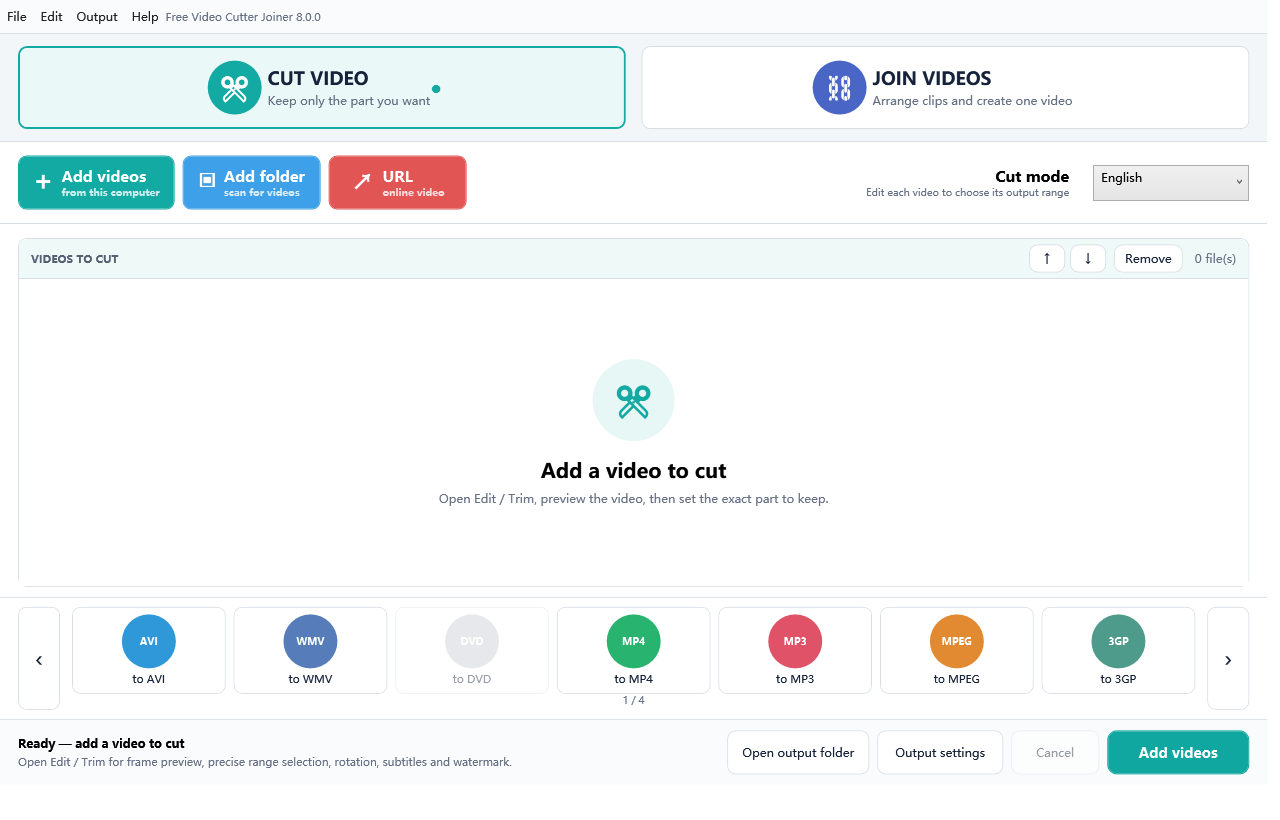
- Choose Cut mode. Add the source video. The clip list and preview make it clear which file is active.
- Preview the material. Seek near the intended start and end. Use the timeline controls to refine the selection.
- Mark the section to keep. You can keep one continuous part or build a list of multiple retained segments when several unwanted passages must be removed.
- Choose the cut strategy. Select Smart Cut for keyframe-safe speed, or choose an encoded output when exact visual boundaries, transformations or format changes are required.
- Choose the output. Pick a destination that is different from the source. Existing output protection helps prevent accidental replacement.
- Export and check. Let the job finish, then play the first seconds, the final seconds and any segment transitions. Keep the project file if you may revise the edit later.
Smart Cut or exact encoding?
| Priority | Recommended method | What to expect |
|---|---|---|
| Fastest trim and no video re-encode | Smart Cut | Boundary follows a safe nearby keyframe when required |
| Exact first and last visual frame | Frame-accurate encoded output | Longer processing; output is newly encoded |
| Crop, rotate, speed change or watermark | Encoded output | Transforms require decoded frames |
| Unusual or damaged source | Encoded normalized output | May improve compatibility with players |
How to preserve the best practical quality
- Keep the original resolution and frame rate unless you have a reason to change them.
- Do not repeatedly export an already encoded intermediate. Return to the original source for revisions.
- Use Smart Cut when exact-frame placement is not necessary.
- For encoded output, choose a quality-focused preset rather than an extremely small file target.
- Check audio sync at the cut boundary, especially with phone recordings and variable-frame-rate footage.
Private footage stays local
Online trimmers can be convenient, but they require an upload and later a download. That may be slow for large files and inappropriate for personal, customer or workplace footage. Free Video Cutter Joiner performs its normal cut and join processing on the Windows PC. There is no account requirement, telemetry or advertising bundle.
What about the Windows Photos app or Clipchamp?
Microsoft provides basic editing in Windows apps, and its official support pages explain current photo and video editing options. Those tools can be appropriate for a simple edit. A dedicated cutter is useful when you need an explicit Smart Cut versus exact-encode choice, several keep segments, output control, project recovery, subtitles or joining in the same application. See Microsoft’s current Windows photo and video editing guidance for the built-in route.
Frequently asked questions
Does trimming always reduce video quality?
No. A compatible stream-copy trim preserves the copied compressed packets. An exact-frame or transformed export normally requires encoding, so choose an appropriate quality setting and avoid unnecessary repeat exports.
Why does a Smart Cut start slightly earlier or later?
The requested frame may depend on an earlier keyframe. Moving to a safe keyframe avoids reconstructing and encoding the boundary. Use exact mode when that small shift is unacceptable.
Will the program add a watermark?
No watermark is added by default. A configurable watermark is available only when you deliberately choose to add one.
Can I remove several unwanted parts?
Yes. Create multiple segments to keep, review their order and export them as one result.


