A polished video often needs more than a cut. Phone footage may be sideways, an old capture may have unwanted borders, subtitles may be external and a small ownership mark may be appropriate. These operations change the decoded picture or audio/subtitle layout, so planning them together avoids repeated exports.

Recommended order of operations
- Confirm the source orientation and aspect ratio.
- Choose the crop and final frame geometry.
- Rotate or flip if needed.
- Select audio tracks and adjust metadata or delay.
- Add and synchronize subtitles.
- Set speed or loudness options.
- Add a watermark last so it is positioned inside the final cropped frame.
- Preview, choose a quality target and export once.
Crop video without guessing
The visual crop editor displays an adjustable rectangle over the frame. Use it to remove black borders, an accidental edge object or an unwanted interface area. Aspect-ratio presets help when preparing 16:9, 4:3 or other common layouts, but the subject should determine the final composition.
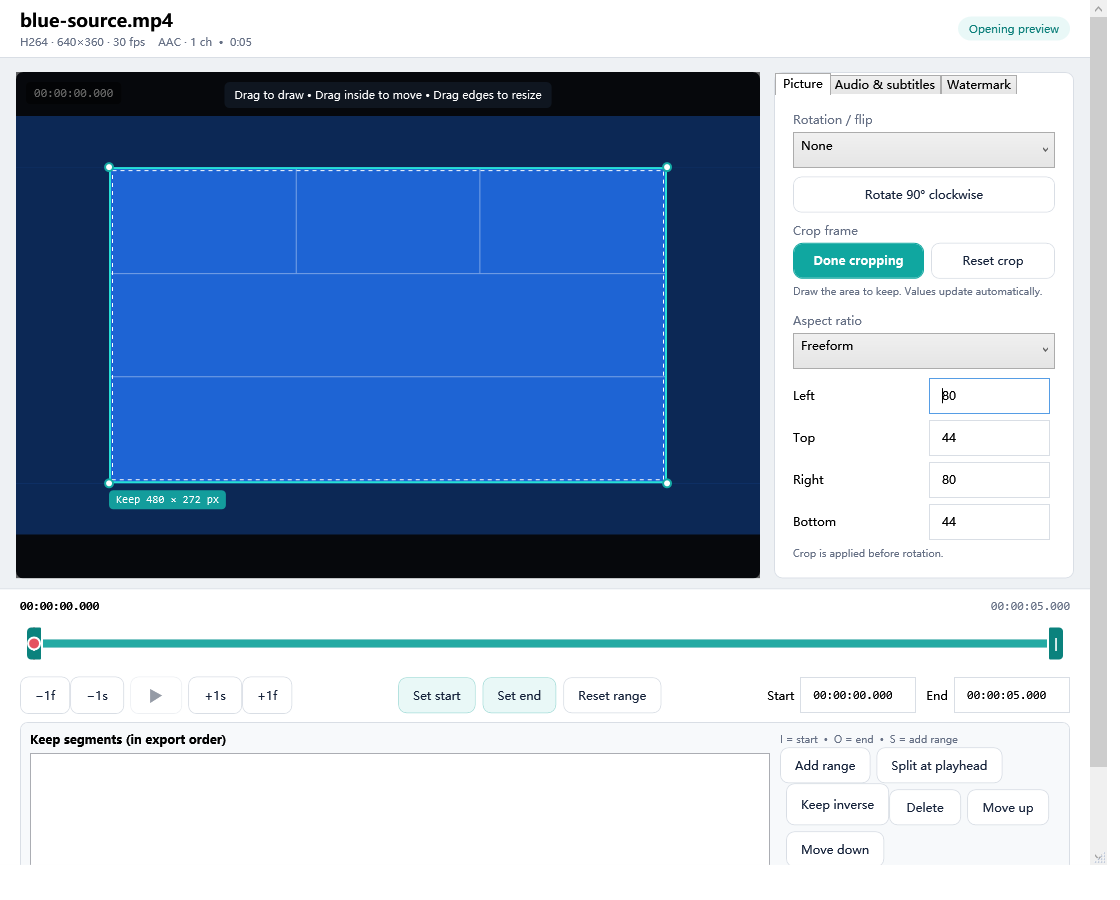
Crop versus resize
Cropping discards pixels outside the rectangle. Resizing changes the dimensions of the retained image. If you crop a narrow area and then enlarge it to 4K, the program cannot recreate detail that was not present. Choose a sensible output resolution for the retained region.
Crop versus padding
Cropping fills the target frame by sacrificing edges. Padding preserves the entire picture but adds bars. For portrait phone footage in a landscape project, padding is often safer; for a subject centered in a wide frame, a deliberate crop may look better.
Rotate and flip correctly
Some cameras store orientation as metadata rather than rotating the pixels. A player may respect that tag while another does not. Preview the actual result and use a rotate transform when you need consistent output. Horizontal flip creates a mirror image; it is not the same as correcting a 90-degree orientation.
Add subtitles: soft track or burned picture?
Free Video Cutter Joiner works with SRT, ASS, SSA and VTT subtitle files in supported workflows. A soft subtitle track remains optional in a compatible container. Burned subtitles are permanently rendered into the video and require encoding.
- Use SRT for straightforward timed text.
- Use ASS/SSA when positioning and richer styles matter, but confirm fonts on the export machine.
- Use VTT for web-oriented caption sources, checking compatibility with the chosen output.
- After changing speed or removing segments, verify that subtitle timing still matches speech.
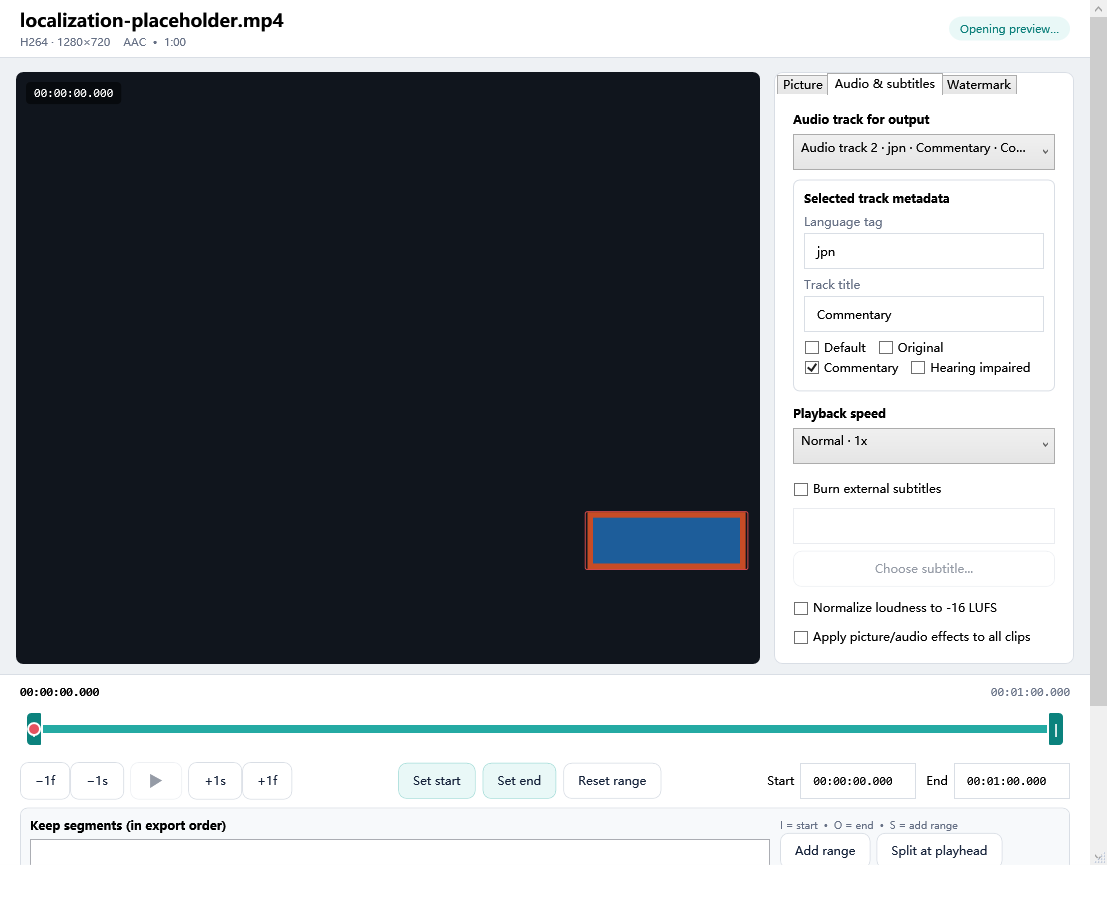
Select the correct audio track
A source may contain several languages, commentary, descriptive audio or a silent track. Select the intended stream for every clip, not merely the first numeric track. Edit language and title metadata when it helps downstream players present the right choice. Use delay carefully and check lip sync near the beginning and end.
Add a watermark responsibly
A watermark can identify a draft, brand owned content or discourage casual reposting. It should not obstruct captions or the main subject. Use appropriate opacity, margins and size, and preview it at the final output resolution. The application does not add a watermark by default; it appears only when you configure one.
Why these edits require encoding
Crop, rotation, burned subtitles, speed changes and picture watermarks alter frames. A stream-copy output cannot perform those transformations. Choose a suitable encoded preset and avoid a second generation by applying all planned transforms in one export.
Final quality checklist
- Check the first and last frames for unintended borders.
- Check faces, text and horizon lines after cropping or rotation.
- Read subtitles through at least several scene changes.
- Listen to the chosen audio track and verify sync.
- Check that the watermark does not cover captions or controls.
- Decode the complete final file before deleting the original.
Frequently asked questions
Can I crop without changing aspect ratio?
You can constrain the crop to an aspect ratio, but removing pixels changes the available frame. The output may need resizing to the target dimensions.
Can I add subtitles without burning them into the picture?
Yes, when the output container and player support a soft subtitle track. Burn-in is the compatible choice when captions must always be visible.
Can I remove a watermark from someone else’s video?
This guide is about adding your own mark and composing your own footage. Respect copyright, license terms and ownership; cropping is not permission to remove another creator’s attribution.
Are my videos uploaded?
Normal editing is performed locally on your Windows PC. This is useful for large files and private material.


