
Merging MP3 files is not the same as placing them in a playlist. A real join creates one new media file whose timeline contains each input in sequence. That makes it easier to share a lecture series, archive a meeting recorded in parts, or listen to an audiobook as one track.
Prepare the inputs
- Rename chapters with sortable prefixes such as
01-,02-,03-. - Play the beginning and end of each input; repair damaged recordings before joining.
- Note obvious loudness differences. Joining does not automatically master inconsistent recordings.
- Keep the originals until the full output has been checked.
Step-by-step: merge MP3 files
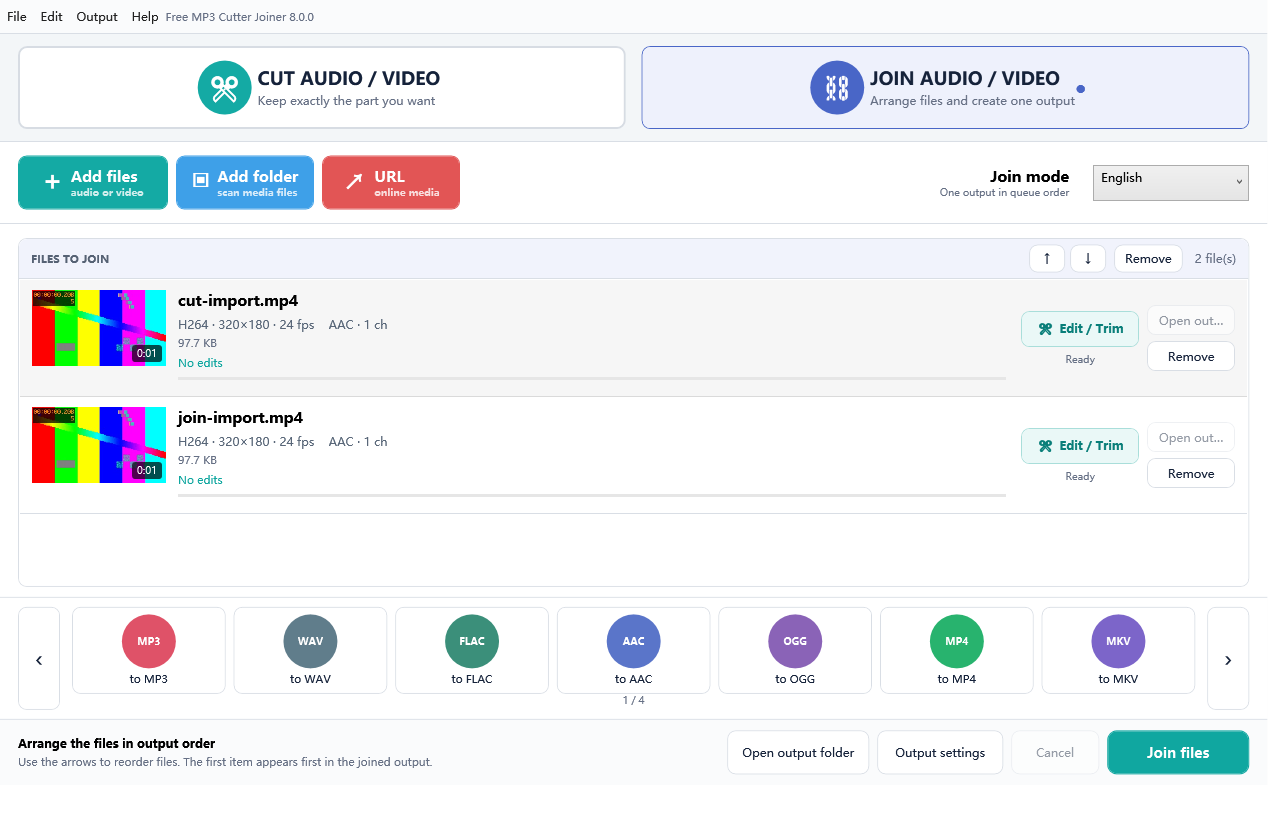
- Switch to Join mode. The list and bottom action change to joining language, reducing mode mistakes.
- Add all inputs. Select individual files or use Add folder.
- Arrange the sequence. Verify the first, middle and final item. File Explorer sorting is not a substitute for checking the app list.
- Pick the output preset. MP3 is the practical default; WAV or FLAC is useful for a lossless master.
- Choose a new output path. Never target an input file.
- Join and listen. Confirm total duration and play across every boundary.
Can MP3 files be merged without quality loss?
Sometimes, but only when the encoded streams are compatible enough for packet copying. FFmpeg’s official documentation states that stream copy avoids decoding and encoding, so it is fast and has no quality loss, but also notes that it may not work in every case. Mixed bitrates, sample rates, channel layouts or encoder details often require normalization. A dependable desktop workflow may re-encode to a single consistent output instead of producing a fragile file.
What if the recordings have different formats?
Do not concatenate raw bytes. Add the MP3, WAV, M4A or other supported inputs to the same join job and select one target format. The application’s media pipeline decodes the sources and creates a consistent output stream. Read our mixed-format audio guide for quality choices.
A six-point verification checklist
- The output opens in a second player.
- The displayed duration approximately equals the combined source durations.
- The first and last sections are present.
- Every join boundary plays without silence, truncation or a loud transient.
- The expected audio stream exists and decodes to the end.
- The source files retain their original size and hashes.
What happens to titles, artwork and chapter metadata?
A joined media stream does not automatically create a meaningful album, episode title or chapter structure. Input files may contain different ID3 tags, cover images or comments, and a single output cannot preserve several conflicting values as one coherent tag set. Treat the new file as a new work: after verifying the audio, set its title, artist/author, album or podcast name and cover art with a dedicated metadata editor. Keep a text list of original chapter names if their order matters.
For audiobooks and long lessons, one large MP3 is convenient but a chapter-aware container can be better for navigation. Decide whether the target player supports chapters before flattening dozens of inputs into one track.
Gapless joins, clicks and silence
“Gapless” can mean two different things. First, the app may place decoded clips directly next to each other with no intentionally inserted silence. Second, the final MP3 may still have encoder delay or padding that a particular player handles differently. Always listen on the actual destination device. A click at a boundary can also be part of the source waveform when one clip ends far from zero amplitude and the next begins elsewhere. A short fade requires an audio editing/mixing workflow; joining alone should not pretend to master that transition.
Common use cases
FAQ
Is this the same as mixing tracks?
No. Joining places clips one after another. Mixing layers audio so it plays at the same time.
Will filenames decide the order?
The visible list is authoritative. Review it before starting.
Can I join video too?
Yes. Join mode also accepts supported video files, but compatible dimensions, streams and output settings still matter.
Authoritative references
FFmpeg documents stream copy and why transcoding may be necessary. Microsoft documents common Windows media file types. See FFmpeg streamcopy and Microsoft Support.