
M4A files often come from phone voice memos, meetings, music libraries and portable recorders. Joining them is straightforward only after the recording order, codecs, sample rates and channel layouts are understood. A reliable workflow creates one new result, preserves every source and checks each transition.
What M4A means
M4A commonly refers to an audio-only member of the MOV/MP4 container family. FFmpeg’s official format documentation lists the MOV/MPEG-4 family and an iPod-style MPEG-4 audio variant. The container may carry AAC or another supported audio encoding, so matching .m4a extensions do not guarantee identical streams.
Apple’s current Voice Memos guide notes that recordings exported to Files use M4A by default. That makes M4A joining a common Windows step after transferring several phone recordings.
Prepare a deterministic order
- Copy the approved recordings into one new folder.
- Rename copies with zero-padded numbers such as
001-opening.m4a,002-interview.m4aand003-closing.m4a. - Play the start and end of every file.
- Remove duplicates from the working set, not from the original archive.
- Record the count and approximate total duration.
File Explorer order is not a substitute for checking the application list. The visible source order immediately before processing is the contract for the result.
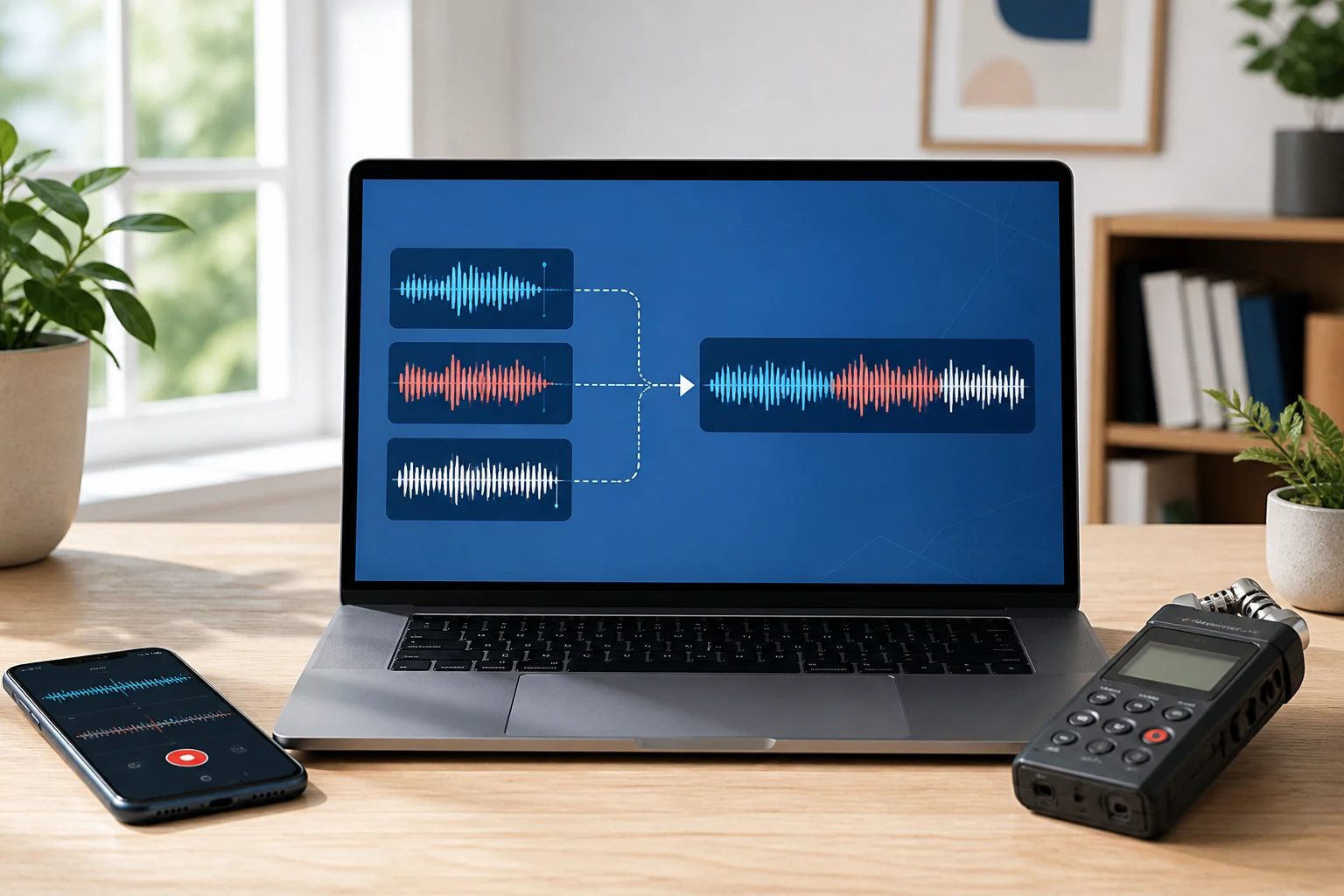
Step by step: combine M4A recordings
- Open Join Audio / Video. Start with an empty list.
- Add the working copies. Confirm the exact expected count.
- Arrange the order. Inspect first, last and several middle items.
- Choose one target. Use M4A/AAC or MP3 for compact delivery; WAV or FLAC for a lossless intermediate.
- Choose a new destination. Do not target any source file or an existing report.
- Create the output. Wait for the final status.
- Verify boundaries. Listen before and after every cumulative source duration and play the file to the end.
Can M4A files be joined without re-encoding?
Sometimes, when the contained audio streams and container parameters are compatible. Copying compressed packets avoids a new generation of lossy encoding. But phone recordings can differ in codec profile, sample rate, channels, timestamps or metadata. If the streams are incompatible, a dependable join needs normalization into one selected output.
Do not market a mixed-input result as universally lossless. The correct statement depends on whether the job copied compatible streams or decoded and encoded them.
Choose the target for the next use
| Use | Suggested output | Trade-off |
|---|---|---|
| Phone or compact review copy | M4A/AAC or MP3 | Small, but usually lossy. |
| Transcription or editing | WAV or FLAC | Larger, avoids another lossy generation before later work. |
| Podcast master | WAV/FLAC working master, one final delivery encode | More storage, clearer production chain. |
| Archive | Original M4A files plus ordered manifest | Preserves source evidence and chapter boundaries. |
Voice memo specifics
Phone recordings may include a few seconds of handling noise, notification sounds or silence. Clean each working copy before the final join if those sections should not be present. Keep the unedited original. When several speakers were recorded on different devices, volume and room tone can vary; sequential joining does not normalize loudness or create crossfades.
Apple also notes that certain layered or spatial recordings may be flattened or converted during export. Treat the transferred M4A as the source you actually received and inspect its channels instead of assuming it still contains every phone-side feature.
Titles and metadata
Each source may contain a different title, creation date or comment. One output cannot hold several conflicting values as a single coherent tag. Verify the audio first, then use a dedicated metadata tool if the final recording needs a title, author, album or cover. Preserve an ordered text manifest when the individual source names matter.
Verification checklist
- Source count matches the planned count.
- Every source appears once and in the correct order.
- Output duration is close to the source-duration sum.
- No speech or sound is clipped at transitions.
- The output plays and decodes to the end.
- All original M4A hashes and timestamps remain unchanged.
Troubleshooting
The order is wrong
Stop and rebuild the working list from zero-padded copies. Do not repeatedly rearrange an uncertain large list.
There is a gap between recordings
The source may contain silence or encoder padding. Inspect each boundary. Joining does not automatically remove silence.
One clip is much louder
Loudness mastering is separate from joining. Normalize approved working copies in an audio editor before the final assembly.
Authoritative references
FFmpeg documents the MOV/MP4 family used by M4A workflows. Apple documents the current Voice Memos export behavior. See FFmpeg formats and Apple Voice Memos.