
A good ringtone is not simply the loudest 30 seconds of a song. It begins cleanly, reaches the recognizable part quickly, ends without chopping a note, and stays short enough to locate on a phone. You can prepare that clip on Windows without uploading the source audio or installing a full multitrack studio.
Choose the right part before opening the editor
Most phones begin a ringtone from its first sample, so a long quiet lead-in wastes the moment when you need to notice the call. Choose a section with a recognizable attack: the start of a chorus, a clear instrumental phrase, a spoken tag you recorded yourself, or a sound designed for notification use. Avoid beginning in the middle of a syllable or sustained note.
Twenty to thirty seconds is a practical planning range, but the phone—not the editor—decides how long it will actually play. A shorter eight-to-fifteen-second loop can work better for notifications. Keep the original source and export several named candidates if you are unsure.
Step-by-step: create the audio clip
- Work from an authorized source. Use music or audio you own or have permission to edit. A technical cutting tool does not grant redistribution rights.
- Open Cut mode. Choose Cut Audio / Video and add the MP3, WAV, M4A, FLAC or other supported source.
- Preview a rough range. Find the memorable phrase, then move the start slightly earlier so the first transient is complete.
- Set the final end. Let the final word, cymbal or reverb tail finish naturally. A tiny amount of room tone is usually better than an abrupt stop.
- Choose an output. MP3 is broadly convenient. If the clip will be processed again in another app, keep a WAV or FLAC master too.
- Save to a new name. Use a name such as
ringtone-guitar-chorus-v1.mp3, never the source filename. - Verify and transfer. Play the whole output, then copy it to the phone using the phone maker’s supported file-transfer or ringtone workflow.
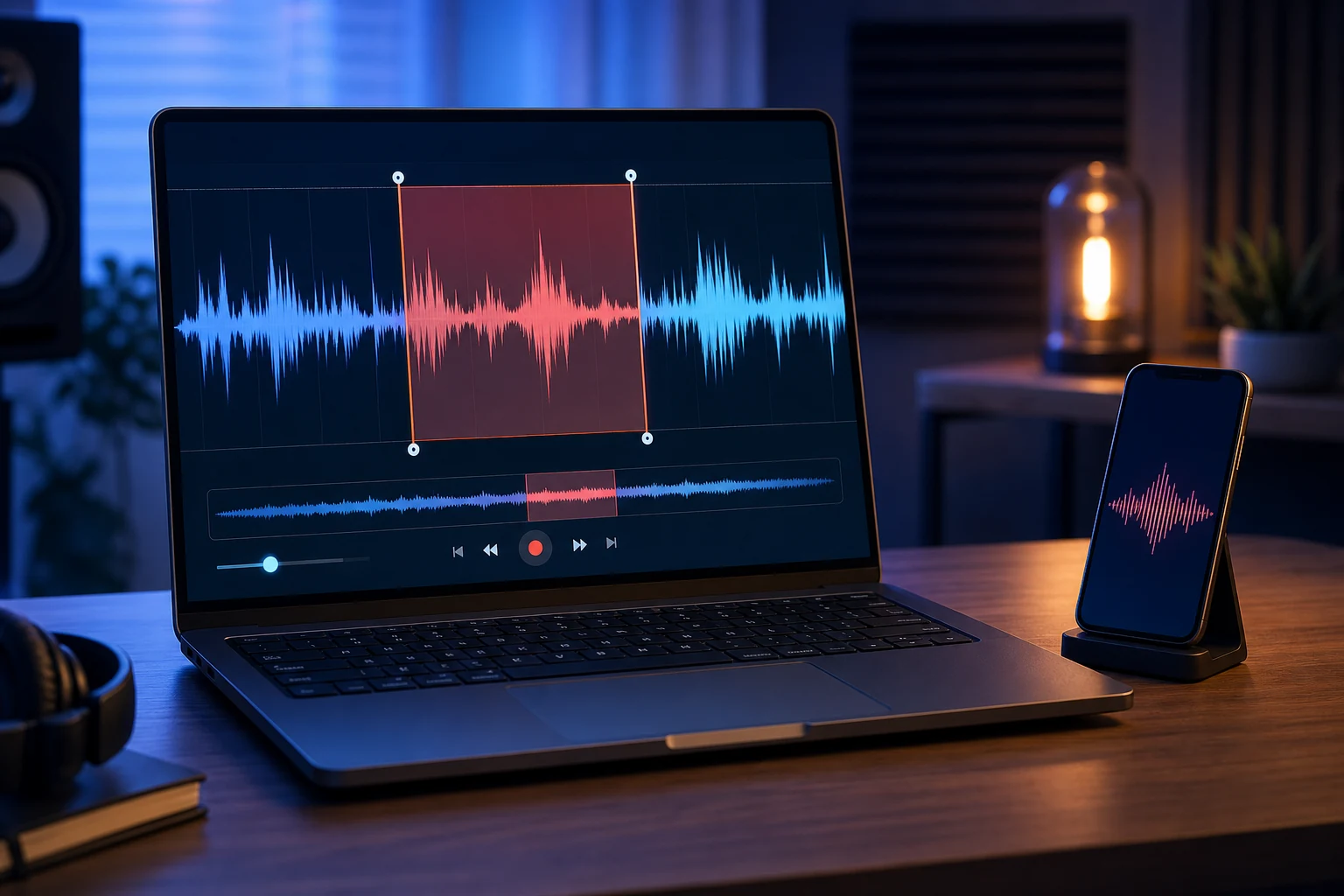
Android and iPhone are different final steps
Free MP3 Cutter Joiner prepares the audio file; it does not change phone settings. Android devices commonly let you copy a compatible audio file and choose it in Sound settings, although the folder and menu vary by manufacturer. Apple devices use their own ringtone workflow and may require an Apple-supported app or ringtone format after the Windows clip is prepared. Check the current instructions for the exact phone and operating-system version rather than following an old screenshot blindly.
This separation is useful: create and archive one clean master clip on Windows, then adapt only the delivery copy needed by a particular phone. Do not repeatedly re-encode the same MP3 each time you change devices.
Protect quality during a short export
Short duration does not make low-quality settings harmless. MP3 and AAC are lossy; decoding and encoding again can discard more information. Choose an appropriate quality preset, avoid multiple generations, and keep a lossless source when available. Exporting a low-bitrate MP3 at a much higher bitrate does not restore details already removed from the source.
Perceived loudness also matters. A ringtone prepared from a quiet interview may be hard to hear, while a mastered music clip may be startling. Cutting does not automatically normalize loudness. Compare the candidate on the actual phone at a safe volume before relying on it.
How to make the boundaries sound deliberate
- Leave the first consonant, drum hit or pick attack intact.
- Avoid ending exactly at a zero-looking thumbnail without listening to the decoded sound.
- Play the output from silence so you hear the true first sample.
- Listen on both headphones and the phone speaker.
- If a creative fade is required, use an audio editor that explicitly provides fades; a cut command should not pretend to add one.
Five checks before choosing the ringtone
- The file opens on Windows and on the target phone.
- The duration is close to the selected end minus start.
- The first sound is complete and immediate.
- The final sound is not clipped or followed by accidental silence.
- The original file’s size and content remain unchanged.
Keep two versions if useful: a lossless archive clip and the compact phone copy. This gives you a clean source when a future device expects another format.
Troubleshooting
The clip starts too abruptly
Move the start slightly earlier and listen again. Visible waveform peaks do not always reveal the complete consonant or musical attack.
The phone cannot select the file
Confirm the phone’s supported ringtone formats and location. The Windows export may be valid but still need the phone maker’s import workflow.
The result sounds quieter or harsher
Compare the source and output at matched playback volume. Avoid repeated lossy conversion and use a suitable quality preset.
Authoritative references
Microsoft documents common media types used on Windows, while FFmpeg documents the decoding, trimming and encoding pipeline behind media conversion. See Microsoft Support and FFmpeg documentation.