
A folder can contain an MP3 interview, a WAV recorder export, an M4A voice memo and a FLAC music bed. These files do not share one container, codec or technical profile. To create a dependable single file, decode each source, arrange the clips, and encode one consistent output.
Why raw concatenation fails
Copying file bytes with Command Prompt does not reconcile headers, timestamps, sample rates, channel layouts or codecs. A player may stop after the first item, report the wrong duration, or produce silence at a transition. A media-aware joiner uses demuxers and decoders to understand each source, then creates a new output stream.
Choose the output before you start
| Output | Best for | Trade-off |
|---|---|---|
| MP3 | Sharing, broad playback, compact files | Lossy; avoid repeated re-encoding |
| WAV | Editing, archiving a PCM master | Large files |
| FLAC | Lossless storage with smaller size than WAV | Not every legacy device supports it |
| AAC/M4A | Modern phones and compact delivery | Lossy; container compatibility varies |
| OGG/OPUS | Open web/voice workflows where supported | Less universal on older devices |
A reliable mixed-format workflow
- Inspect the sources. Play each file and note speech/music, mono/stereo, and obvious loudness differences.
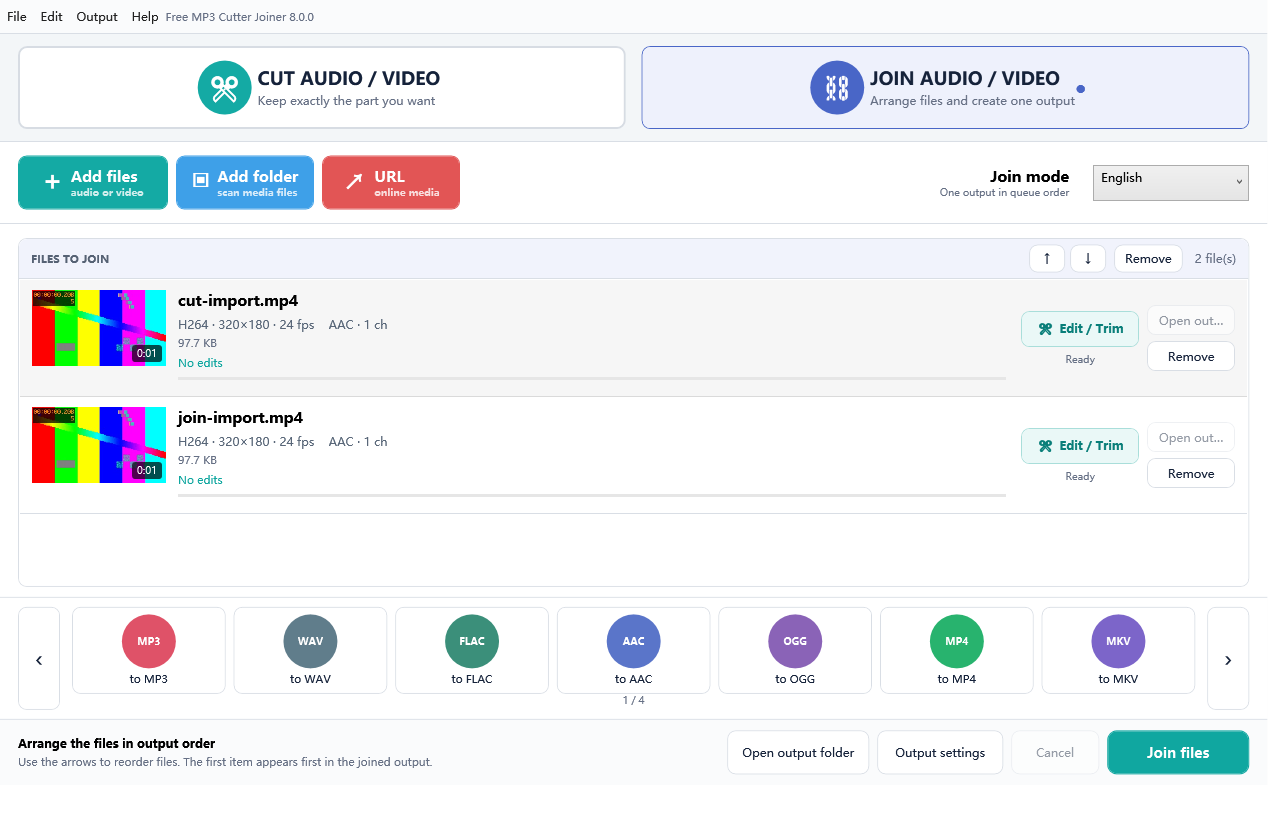
- Choose Join Audio / Video. Add MP3, WAV, M4A, FLAC or the other supported sources.
- Put them in sequence. Confirm the visible order, not just the folder order.
- Select one target. Choose WAV or FLAC when the result will be edited again; choose MP3 for compact final delivery.
- Export once. One deliberate conversion is better than repeatedly converting intermediate MP3 files.
- Verify transitions. Listen before and after each boundary and confirm the total duration.
Sample rate and channel differences
A 44.1 kHz stereo MP3 and a 48 kHz mono WAV cannot simply become one coherent elementary stream by byte copying. A conversion pipeline resamples and maps channels to the selected output. This is normal, but it is why the result should be checked at transitions—especially when speech switches to music or mono switches to stereo.
Protect quality
- Keep lossless originals.
- Use WAV or FLAC for an intermediate master.
- Export the final lossy format once.
- Do not assume a higher bitrate restores data already removed by an earlier lossy encode.
- Match the output to the listening device and distribution channel.
A format decision by real scenario
Podcast assembled from WAV and M4A
Export a WAV or FLAC master if another editor will add music, loudness processing or chapters. Create the distributable MP3 only after that work is complete.
Audiobook chapters already in MP3
If compatibility is the priority, a consistent MP3 output is practical. Preserve the chapter source files and verify the complete duration and every boundary before archiving.
Voice memos from several phones
Expect different sample rates, channels and loudness. Choose one target profile, but review volume changes separately; conversion does not perform editorial loudness matching.
Music archive in FLAC and WAV
Use FLAC when you want one lossless file without WAV’s larger uncompressed size. Do not convert the only lossless copies to MP3 and then delete them.
Build a reproducible join record
For important projects, save a simple text manifest beside the output. Record the ordered input filenames, their durations, the chosen output format, the creation date and the application version. This turns an opaque merged file into a reproducible deliverable. If a transition is wrong six months later, you can identify the source pair and recreate the job instead of guessing.
When joining is not the right operation
Use a multitrack audio editor when clips must overlap, crossfade, duck under narration, share background music, or receive separate volume automation. Free MP3 Cutter Joiner creates a sequential timeline: clip one, then clip two, then clip three. That distinction prevents a common disappointment—expecting a join command to create a mastered mix. Finish creative mixing first, export each approved section if necessary, then use joining only when the remaining job is ordered concatenation.
Troubleshooting
The result is much quieter in one section
The sources likely have different recorded levels. Joining preserves sequence; it is not automatic loudness mastering. Normalize or level the sources in a dedicated audio editor before joining.
The duration looks wrong
Use a second player and decode the file to the end. If raw-copy tools were used earlier, recreate the output with a media-aware join workflow.
I need zero-loss joining
Use compatible same-codec sources and a verified stream-copy workflow. Mixed formats necessarily require decoding and a new consistent output.
Authoritative references
FFmpeg describes its universal conversion pipeline, stream copying and transcoding; Microsoft lists common audio and video types supported in Windows Media Player. See FFmpeg documentation and Microsoft Support.