
Online cutters are convenient for a tiny non-sensitive clip. But an upload is still a transfer to another system. Interviews, client calls, medical dictation, legal recordings, unpublished music and internal meetings deserve a more deliberate choice.
Offline and online editing compared
| Question | Offline desktop | Online service |
|---|---|---|
| Where is media processed? | On the Windows PC | Usually on a remote server after upload |
| Large files | Limited mainly by local disk and resources | May face size, time or plan limits |
| Connection | Not required for media processing | Required for upload/download |
| Sensitive audio | Can remain local | Requires reviewing the provider’s privacy and retention terms |
| Updates | User controls installed version | Service changes are immediate |
Choose offline editing when…
- The recording contains personal, confidential or embargoed material.
- The file is large or your upload connection is slow.
- You need to process many files repeatedly.
- You want a predictable local output folder and no account.
- You need audio from a video without uploading the video.
A practical privacy checklist
- Work from a copy. Keep an untouched source in a separate folder.
- Use a dedicated output folder. This makes review and deletion clear.
- Check temporary and recent-file behavior. Know where the application stores settings and reports.
- Verify the installer source and hash. Download from the official HTTPS page.
- Remove outputs deliberately. Deleting a shortcut does not delete the media file.
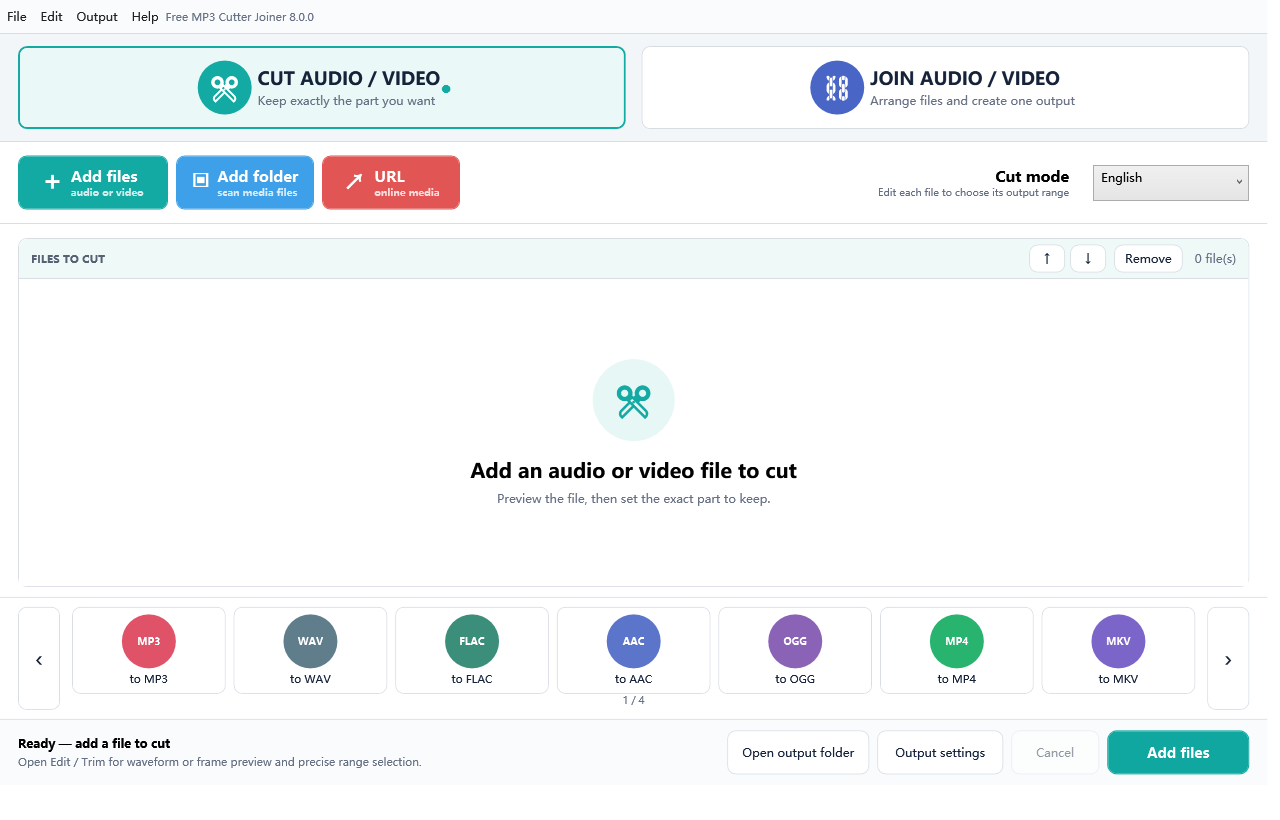
Does offline mean “never connects”?
The media operation is local. The framework-dependent installer may connect to Microsoft’s official runtime download when the required .NET Desktop Runtime 8 x64 is missing. That prerequisite download is distinct from uploading your media. The application also discloses its use of FFmpeg in the About information.
Think in terms of a simple threat model
Ask three questions before choosing a tool: What is in the recording? Where will the bytes travel? How long could another party retain them? A birthday song has a different risk from a client call, medical dictation or an unreleased album. If the answer to the first question is sensitive and you cannot answer the other two from an online service’s current policy, local processing is the safer default.
Offline software does not remove every risk. Malware, insecure downloads, cloud-synced output folders and shared Windows accounts can still expose files. Download from the official HTTPS domain, verify the published SHA-256, keep Windows protections enabled and save confidential outputs somewhere with appropriate access controls.
Verify the installer before running it
- Check the domain. The official download should come from
www.freemp3cutterjoiner.comover HTTPS. - Check the filename and size. Unexpected HTML-sized files or redirects deserve investigation.
- Compute SHA-256. In PowerShell, use
Get-FileHash .FreeMP3CutterJoiner.exe -Algorithm SHA256and compare every character with the value on the download page. - Understand the publisher state. The current build is not digitally signed, so Windows may show Unknown Publisher. A matching hash confirms identity with the published file, not a third-party code-signing certificate.
Design an offline retention workflow
Create a working folder for source copies and a separate folder for exports. After verification, move the final file to its approved destination and remove temporary working copies according to your organization’s retention policy. Remember that Recycle Bin, backup software and cloud synchronization may preserve deleted data. For genuinely sensitive material, follow the data-handling rules of the organization that owns the recording.
When an online cutter may still be reasonable
A browser tool can be a sensible convenience for a short, non-sensitive clip when you understand the provider, file-size limit, retention policy and output quality. The point is not that every upload is unsafe; it is that the decision should be proportional to the content. For public-domain sound or a throwaway notification tone, speed may matter most. For client, health, legal, financial or unreleased creative material, a local tool usually gives you clearer control over where the media goes.
Quality still depends on export choices
Local processing does not automatically mean lossless processing. MP3 and AAC are lossy formats; exporting to them can re-encode the audio. Use WAV or FLAC for a lossless intermediate, then make one final compressed copy for distribution.
FAQ
Do I need an account?
No account is required for the local cut and join workflows.
Does the website receive my audio?
Downloading the installer does not upload your media. Files you add to the desktop application are processed locally.
Can I use the app without internet?
After prerequisites and the application are installed, the editing workflow is local. The installer may need internet access if Microsoft .NET Desktop Runtime 8 x64 is absent.
Authoritative references
The underlying media pipeline is built on FFmpeg. Its official documentation describes local file inputs, decoders, encoders and outputs. See FFmpeg documentation.