
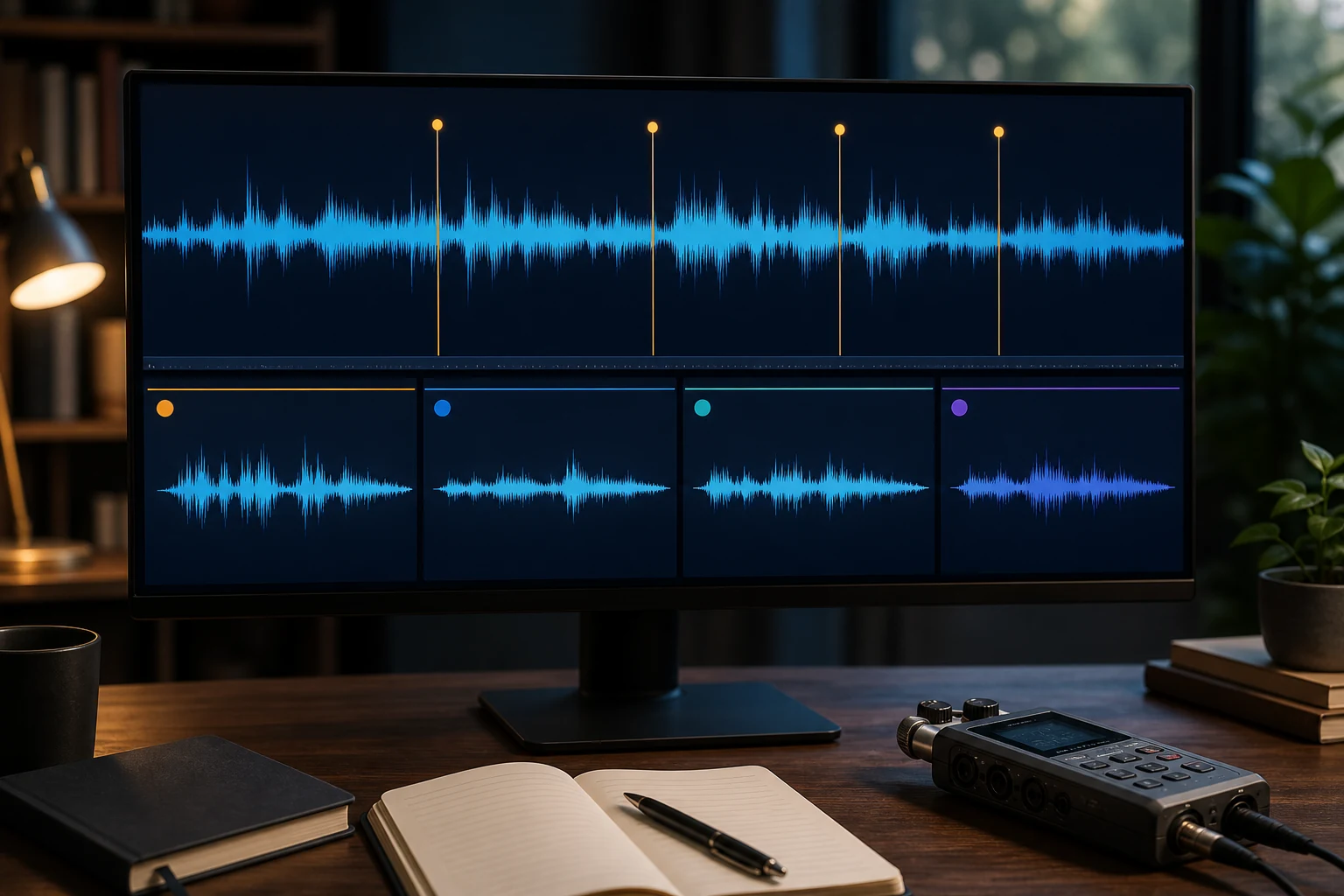
A long lecture, interview, rehearsal or field recording is easier to review when it is divided into meaningful parts. The safest method is not an automatic equal-time split. Plan chapter boundaries around complete ideas, export each wanted range to a new file, and verify the ordered set against a written manifest.
Plan chapters before exporting
Listen at increased speed only for rough navigation, then inspect each boundary at normal speed. Write a table with part number, working title, start time and end time. Avoid splitting in the middle of a sentence, breath, music decay or audience reaction unless that is intentional.
| Part | Start | End | Working title |
|---|---|---|---|
| 001 | 00:00:00 | 00:14:38 | Introduction |
| 002 | 00:14:38 | 00:31:12 | Main discussion |
| 003 | 00:31:12 | 00:47:05 | Questions |
The values above are examples. Your manifest should reflect complete spoken or musical sections and state whether boundaries overlap or meet exactly.
Create a controlled folder structure
source/: untouched original recordingparts-working/: chapter outputs before approvalparts-approved/: verified deliverablesmanifest.txt: ordered filenames, ranges, durations and hashes
Use zero-padded names such as 001-introduction.wav. Store the source elsewhere or mark it read-only if the recording is important. Never name a part exactly like the source.
Export each part
- Open Cut Audio / Video. Add the long recording.
- Enter or locate the first range. Use the written plan and listen around both boundaries.
- Choose the working format. WAV or FLAC is appropriate when the parts will be edited again; MP3 is practical for compact delivery.
- Export part 001. Save to the working folder and wait for the final status.
- Repeat with the next range. Change both range and filename deliberately.
- Stop if any part fails. Preserve the error and do not continue as if the set were complete.
- Verify the complete set. Check order, boundaries, duration coverage and source integrity.
Prevent gaps and duplicates
If the parts should cover the recording continuously, the end of part 001 should equal the start of part 002. If a section is deliberately omitted, record that gap in the manifest. If a small overlap is intentional for review context, record the overlap. Without this explicit rule, several individually successful exports can still form an incomplete or duplicated set.
After export, compare the sum of part durations with the planned kept ranges. Container and timestamp rounding may create a small tolerance, but a large difference signals a missing, duplicated or incorrectly entered range.
One encoding decision for the whole set
Use the same output format, sample rate, channel layout and quality setting across all parts unless the destination requires otherwise. Mixed settings make sequential playback and later reassembly less predictable. When the source is already lossy, avoid repeated MP3-to-MP3 generations. Keep the original and create the final delivery set once.
For speech, a compact MP3 may be sufficient. For music, scientific recordings or later production, preserve a lossless working set. Higher bitrate does not recreate information missing from the source.
Part-by-part verification
- Open every part in filename order.
- Listen to the first and last sentence or musical phrase.
- Confirm duration against the manifest.
- Check that channel layout and sample format are consistent.
- Decode or play each part to its end.
- Compute SHA-256 after approval and add it to the manifest.
- Confirm the original recording remains unchanged.
A simple PowerShell command can create hashes after approval: Get-FileHash .parts-approved* -Algorithm SHA256. Hashes prove later file identity; they do not by themselves prove that the selected ranges were editorially correct.
Can the parts be joined again?
Yes, the approved parts can be placed in Join mode in numeric order. If they share compatible streams, a copy may be possible; otherwise normalization may be needed. A split-then-rejoin cycle is not guaranteed to reproduce the original container byte for byte. Keep the original for archive and evidence.
When to use another tool
Use a dedicated multitrack or batch audio editor when you need dozens of markers exported in one action, fades, noise reduction, loudness matching, crossfades, automatic silence detection or chapter metadata. Free MP3 Cutter Joiner is suitable for deliberate range exports and ordered sequential joins; it should not be described as a full audio workstation.
Troubleshooting
A part starts with a clipped word
Move the start earlier and re-export only that working part. Update the manifest before approval.
The filenames sort incorrectly
Use the same number of digits for every part: 001, 002 … 010.
The parts do not cover the planned duration
Compare adjacent end/start times and check for an omitted or duplicated range. Do not hide the discrepancy with a final join.
Authoritative references
FFmpeg’s official documentation describes time selection, input/output mapping and the difference between copying and transcoding. See FFmpeg documentation.