
A video may contain the interview quote, lecture section or sound effect you need. You do not have to export the whole video first. A local media cutter can select the useful time range and create an audio-only output in one job.
When this workflow helps
- Save a short quote from a recorded interview.
- Create an audio study note from a lecture video.
- Recover the soundtrack from your own camera recording.
- Prepare a podcast excerpt from a video production master.
- Export a clean audio reference without sharing the full video.
Step-by-step
- Check permission. Use video you created or have the right to edit.
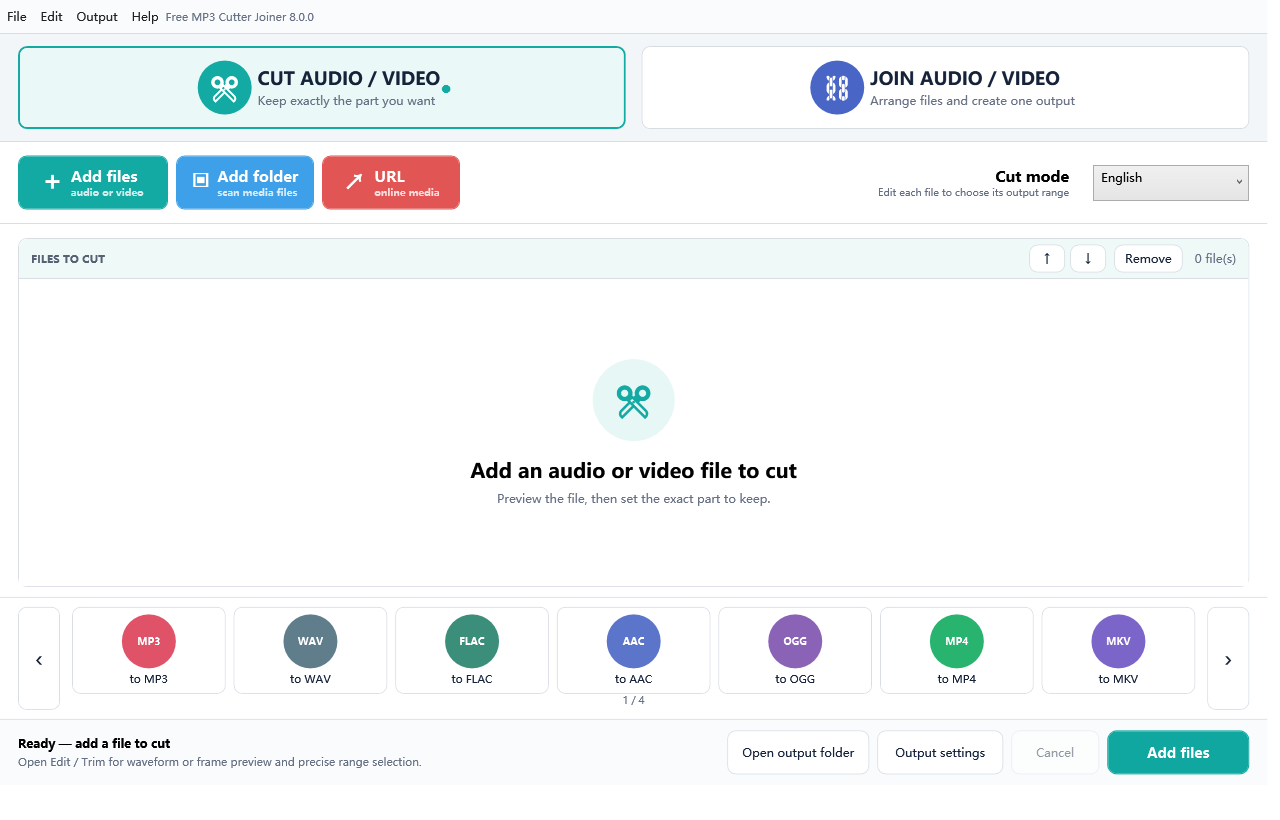
- Open Cut Audio / Video. Add the MP4, MOV, MKV, AVI or other supported video.
- Preview and mark the range. Note the start and end times around the wanted audio.
- Select an audio output. MP3 is compact; WAV or FLAC is better for continued editing.
- Choose a new destination. Keep the source video untouched.
- Run and verify. Confirm the output contains audio, contains no video stream, and plays to the end.
MP3, WAV or FLAC?
Why audio extraction is more than renaming a file
Video containers can hold separate video, audio and subtitle streams. Renaming .mp4 to .mp3 does not extract or convert anything. A media pipeline must demux the source, select the audio stream, optionally decode/trim it, then write a valid audio container.
Choosing exact start and end times
Start by playing the video and writing down a rough range. Then move the start earlier until the first consonant, note or transient is completely present. Move the end later until the final word or decay finishes naturally. For spoken content, a small amount of room tone usually sounds better than a hard cut at the last syllable. For music, listen for reverb tails and sustained notes.
If a source uses a variable frame rate, the visible video frame and the decoded audio timestamp may not align as neatly as a fixed-rate studio file. Judge the exported audio by listening, not only by a displayed thumbnail. The output duration should be close to the selected range, but codecs and containers can introduce small timing tolerances.
Videos with multiple audio tracks
Screen recordings, multilingual discs and edited production files can contain more than one audio stream. The loudest or most-channel stream is not always the one you want. Preview the source, identify the language or mix, and inspect the result immediately. If the application’s automatic stream selection is not the intended one, use a workflow that exposes track selection rather than publishing the wrong language.
What to do with the extracted audio
- Transcription: WAV is a predictable choice for many speech pipelines.
- Podcast clip: keep a WAV/FLAC master, then publish an MP3 copy.
- Presentation: confirm the target presentation software supports the chosen audio format.
- Archive: retain the original video and document the time range used.
- Sharing: remove sensitive surrounding content and verify metadata before sending.
Record enough information to reproduce the extraction
For editorial, legal or research work, the audio file alone may not explain where it came from. Keep the original video filename and hash, the selected start/end times, the chosen stream or language, the output preset and the application version. Store that note beside the export. This small provenance record lets another person recreate the clip, distinguish it from a manually altered recording and investigate a timing dispute without relying on memory.
Common issues
The video has several audio tracks
Confirm which track the application selects and preview the result. Multi-language video or screen recordings may include more than one audio stream.
The clip begins with a chopped word
Move the start slightly earlier. Compressed formats and speech attacks can make an overly tight boundary sound abrupt.
The output is larger than expected
WAV is uncompressed and can be far larger than MP3. Choose the target based on the next use, not only the source format.
Authoritative references
FFmpeg explains elementary streams, demuxers, stream selection and output mapping. See FFmpeg’s pipeline description.